
Schedules
A schedule runs an agent turn on a clock. Unlike a chat you drive by typing, a schedule fires on its own — on a cron expression or a repeating interval — so a project can keep working while you’re asleep, at the weekend, or just not looking. “Triage the overnight issues every morning at 9”, “scan for dependency advisories at 3am”, “post a weekly digest each Friday”: each is a schedule.
Every firing surfaces as an ordinary chat, tagged so you can tell it apart from the ones you started yourself:
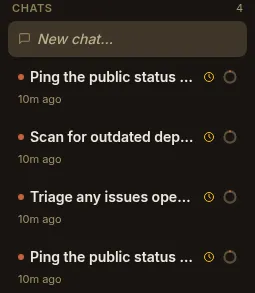
That clock badge (⏰) means a schedule started this chat. The turn streams live, is re-attachable, and is kept forever — it’s a real chat, not a hidden background job.
What a schedule is
Section titled “What a schedule is”A schedule is one kind of trigger — the unified declaration Paddock uses for “run an agent turn when something happens”. A trigger is when it fires + what it runs + whether it’s enabled; a schedule is the trigger whose when is a clock:
cron— a 5-field cron expression (e.g.0 9 * * *for 09:00 daily; the@daily/@hourlymacros also work), evaluated in the host’s local time.interval— a repeating duration like30m,1h, or15m.
Schedules live in the project’s project.yaml (so they survive restarts and are
re-armed from the file on boot) and are managed from the per-project
Triggers tab. A minimal one looks like:
triggers: morning-triage: trigger: type: schedule cron: "0 9 * * *" # or: interval: "1h" run: prompt: Triage any issues opened overnight, label them, and post a summary. session: new # a fresh chat each firing (the default) enabled: trueThe prompt is what the fired turn is asked to do. Instead of an inline
prompt you can point at a promptFile — a git-tracked .md file under the
project’s .paddock/triggers/ directory, read fresh at each firing — which keeps
a long, evolving instruction in version control:
run: promptFile: weekly-digest.md # read from .paddock/triggers/weekly-digest.mdFresh chat vs. one accreting session
Section titled “Fresh chat vs. one accreting session”The session field decides what a firing lands in:
new(the default) — every firing starts a fresh chat. Good for independent, stateless jobs (a nightly scan, an hourly health check): each run is its own clean transcript.resume— every firing accretes into one owned session. The schedule keeps a single, growing chat (created on the first firing, reused after), so a “manager” agent builds up context over time — yesterday’s triage informs today’s.
Tool-less vs. scoped
Section titled “Tool-less vs. scoped”A schedule’s granted tools are its capability, and they decide how the turn runs:
- No tools → the firing runs as the project’s own agent, with its full toolset. This is the simplest case: “just do the thing, as me.”
- A tools allow-list → the firing runs on its own scoped agent
(
trigger-<slug>-<name>) that can use exactly those tools and nothing else — the grant is enforced by construction. Use it to hand a recurring job a small, deliberate capability (say,Read+Greponly).
Schedules vs. ScheduleWakeup
Section titled “Schedules vs. ScheduleWakeup”Don’t confuse a schedule with Claude’s ScheduleWakeup tool:
- A schedule is durable configuration. It lives in
project.yaml, fires on its clock forever, and is completely independent of whether any chat is currently alive. ScheduleWakeupis an ephemeral, session-scoped autonomy tool a session-mode chat can call from within its own live turn to wake itself a bit later. It’s a one-shot follow-up inside one conversation, not a standing recurring job, and it vanishes with the session.
Reach for a schedule when you want a job to run on a clock, indefinitely, whether or not you’re around.
Catching up on what fired
Section titled “Catching up on what fired”Because schedules run unattended, Paddock gives you a per-project History tab — the “while you were away” view — that lists recent runs and highlights the ones you didn’t drive yourself. See Scheduling recurring work for the walkthrough.
Next steps
Section titled “Next steps”- Scheduling recurring work — the hands-on guide: create a schedule in the Triggers tab, self-schedule from a chat, and read the History view.
- Scheduling configuration — the per-deployment gate for programmatic schedule mutation.
- Schedules reference — the full trigger schema, the self-MCP tools, and the REST surface.
- Chats are sessions — what a fired chat is under the hood.