
Scheduling recurring work
Some work should just happen — every morning, every hour, every Friday — without you starting it. This guide is the practical companion to the Schedules concept: that page explains what a schedule is; this one walks through how to create one, self-schedule from a chat, and catch up on what ran while you weren’t watching.
By the end you’ll know how to add a schedule from the Triggers tab, tune what it does, let Claude schedule itself, and read the History view to see everything that fired unattended.
Add a schedule from the Triggers tab
Section titled “Add a schedule from the Triggers tab”Open a project and go to its Triggers tab. Every trigger the project declares is listed here — schedules included, each with a Schedule type badge, its firing condition (the cron/interval under When), a capability summary, and an enabled toggle:
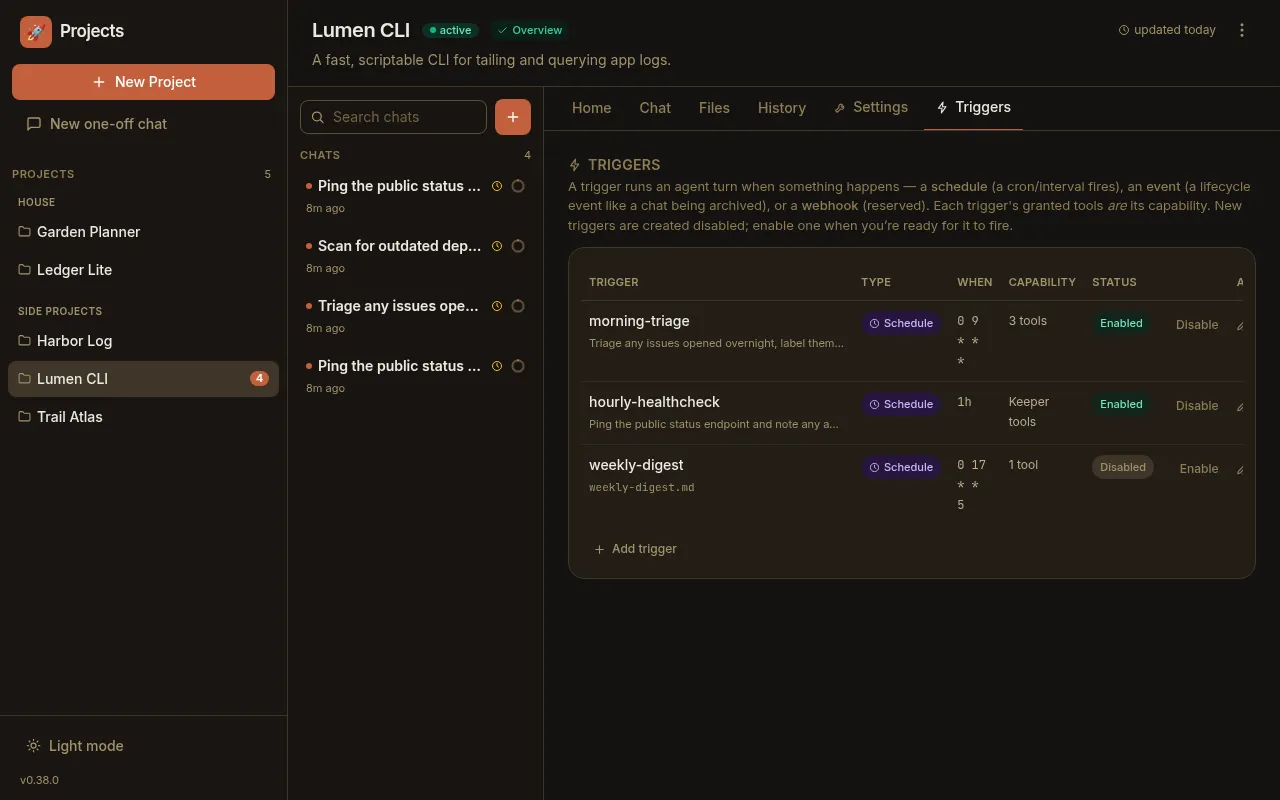
Click Add trigger to create one, or the pencil to edit an existing one. The editor is a single form:
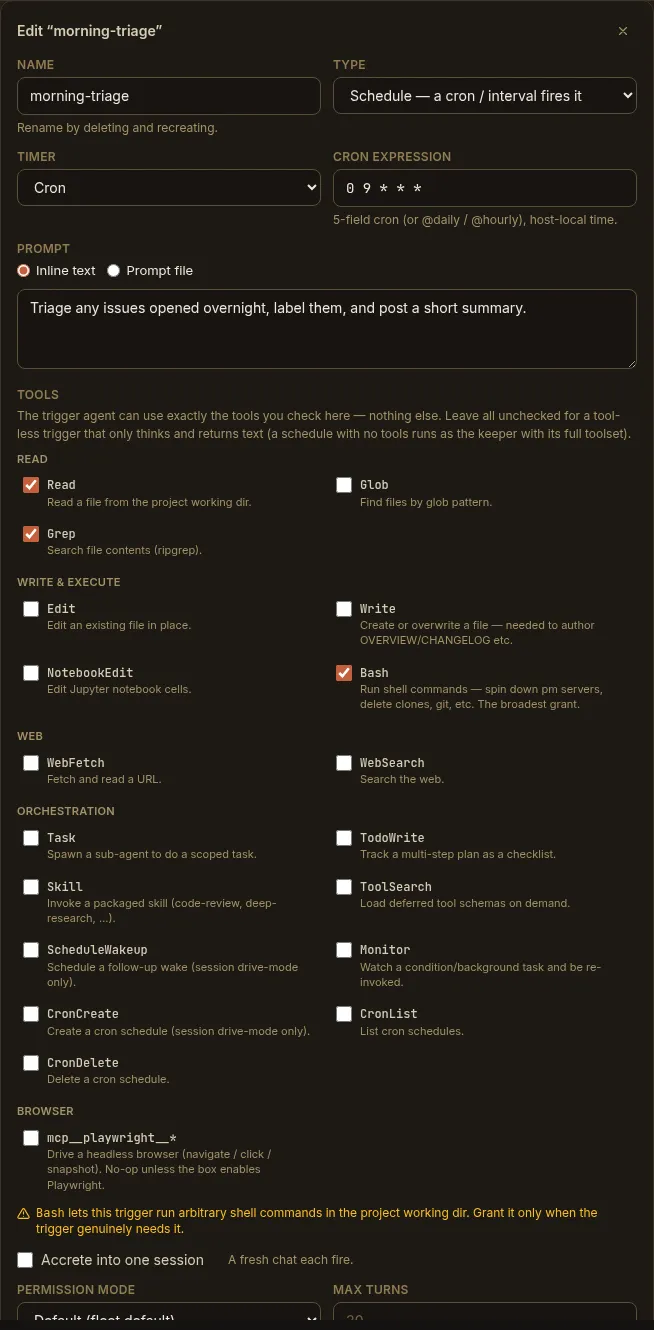
Fill in:
- Name — a stable key, e.g.
morning-triage(letters, digits,._-). - Type — pick Schedule.
- Timer — Cron for a 5-field expression (
0 9 * * *, or@daily/@hourly), or Interval for a repeating duration (30m,1h). Times are the host’s local time. - Prompt — what the firing should do. Toggle to Prompt file to read the
instruction from a git-tracked
.mdfile under.paddock/triggers/instead (handy for long, evolving prompts). - Tools — the firing’s capability. Leave everything unchecked for a schedule that runs as the project’s own agent with its full toolset; check specific tools to run it on its own scoped agent with only those tools.
- Accrete into one session — off (the default) starts a fresh chat each firing; on resumes one owned session so a “manager” builds up context.
- Enabled — whether it’s armed.
Schedule from a chat (the manager-agent pattern)
Section titled “Schedule from a chat (the manager-agent pattern)”You don’t have to open the Triggers tab yourself — on deployments that opt in, Claude can schedule itself straight from a chat. Ask in plain language (“schedule yourself to triage new issues every morning at 9”), and it uses Paddock’s schedule-management MCP tools to write the trigger:
set_trigger— create or update a trigger. For a schedule, passtype: "schedule"with eithercronorinterval, aprompt(orprompt_file), andsession: "new"or"resume".list_triggers— see what’s already declared.remove_trigger— delete one.run_trigger— fire one now, without waiting for its schedule.
This is the manager-agent pattern: a chat you can talk to about its own routine, which then keeps that routine running without you. See the Schedules reference for the exact tool parameters.
Catch up with the History view
Section titled “Catch up with the History view”Because schedules run when you’re not watching, each project has a History tab — the “while you were away” view — so you can see what happened without opening every chat:
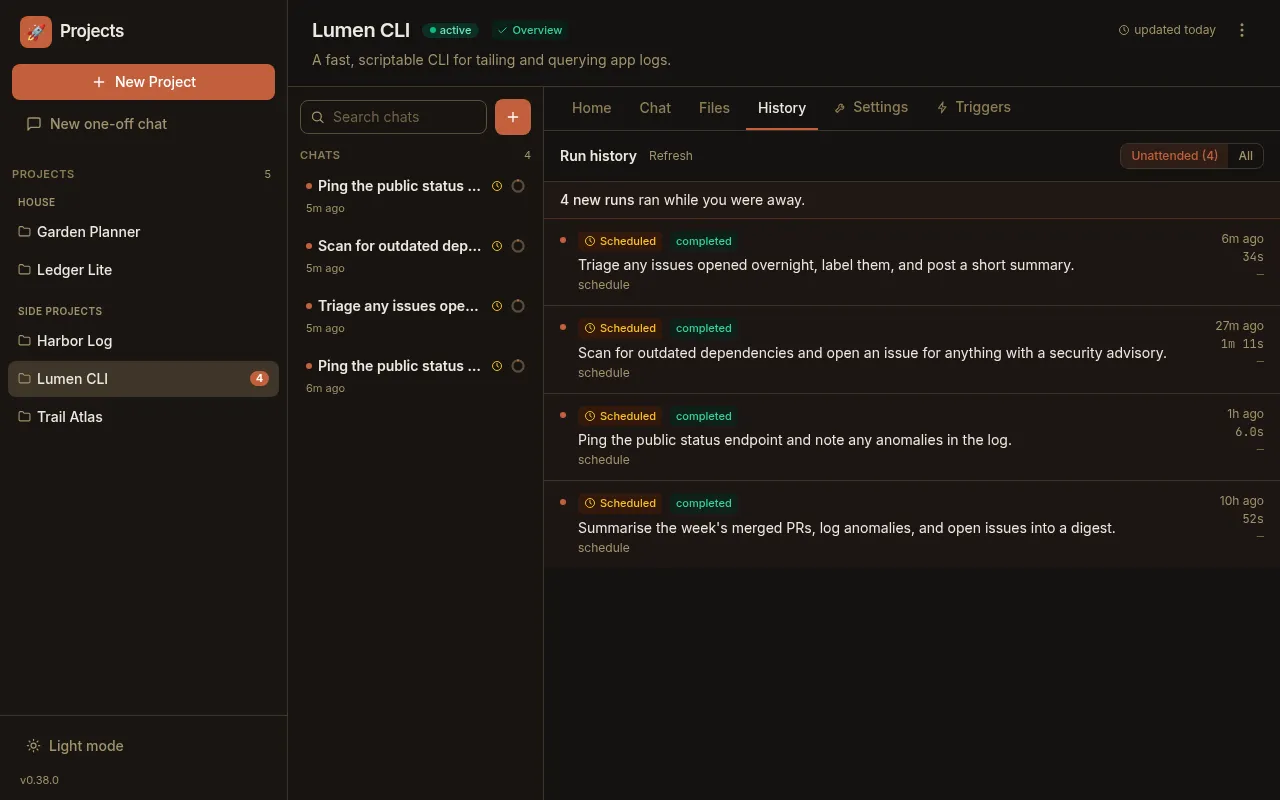
It lists recent runs, each with its origin — Scheduled (⏰), Spawned, Adopted, or You — a status chip, when it ran, and how long it took. The details:
- The “Unattended” filter is the default. It shows only the runs a schedule
or another chat produced — the ones you didn’t drive — so the noise of your own
turns is out of the way. Switch to All to see everything. Runs
adopted from
your terminal
claudehistory count as attended: you drove them, just elsewhere, so adopting never fills this view (or the banner below) with your own back-catalogue. - A “while you were away” banner counts the unattended runs that arrived since your last visit, and a dot marks each new row. Opening the tab clears the badge.
- Click a run to jump straight into its chat and read what Claude did.
Next steps
Section titled “Next steps”- Schedules — the concept: cron vs. interval, fresh-chat
vs. accreting session, and how a schedule differs from
ScheduleWakeup. - Scheduling configuration — the per-deployment gates for programmatic and self-service schedule mutation.
- Schedules reference — the trigger schema, the self-MCP tools, and the REST endpoints.